
- DATE:
- AUTHOR:
- The Jira team
- RELATED ROADMAP ITEMS:
- Set up new work faster with a cleaner, AI create experience
A faster way to create new work in Jira
Every team clicks the Create button dozens of times a day, and every time Jira loads a form with 20+ fields – most of which you scroll right past because you only need a handful. It's not broken, but it's slower and noisier than it needs to be for something you do that often.
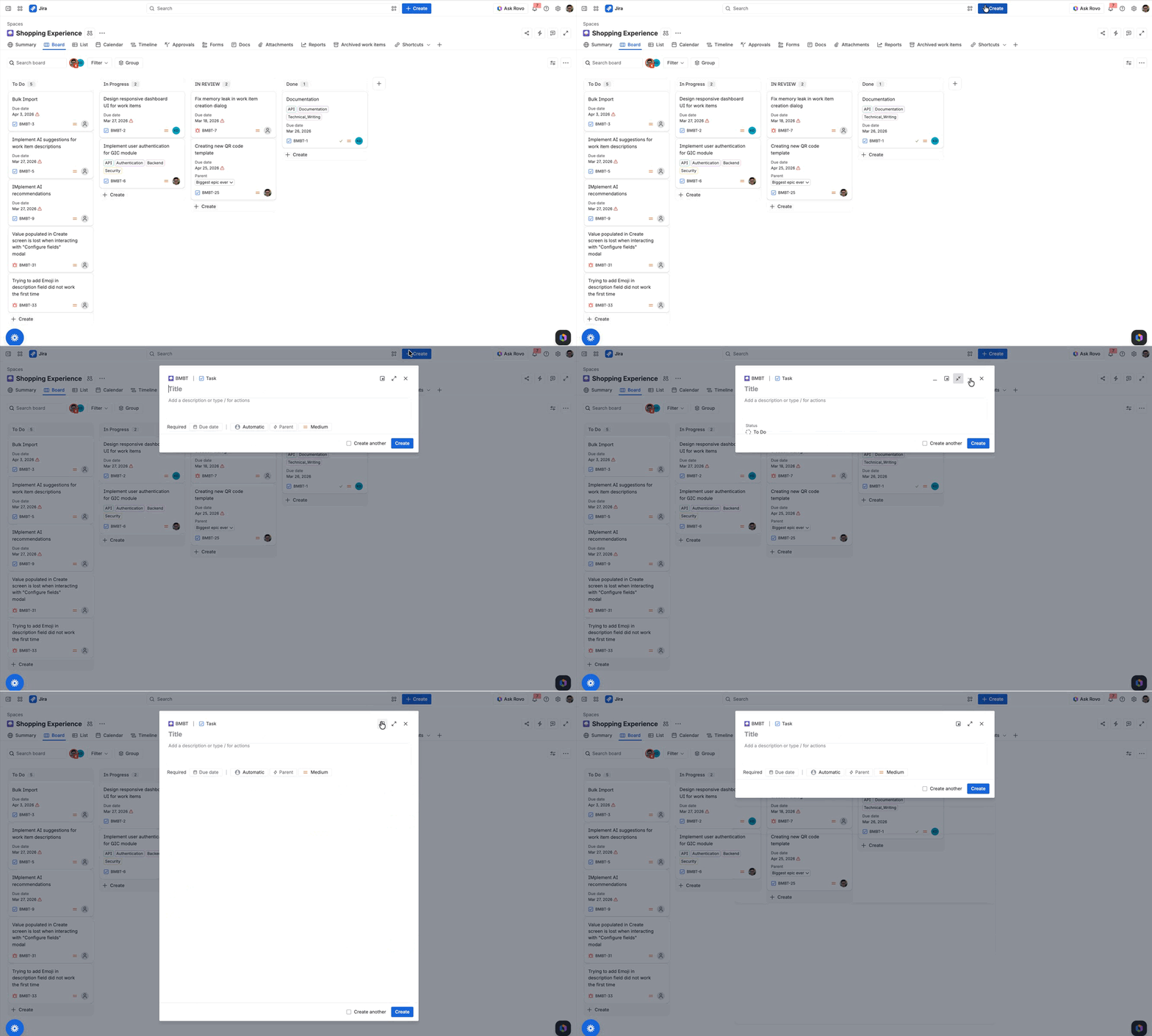
The create experience has been redesigned to start with a compact, focused form: just summary, description, any required fields, and key optional field. The full form is always one click away.
How it works
Just the fields that matter
The new default shows only what you need to fill out. No scrolling past 15 empty fields to get to the submit button. If you need the full form for a complex bug report, a detailed epic, or a work type with lots of required fields, it's one click away.
Works the way your space is set up
Jira doesn't force the compact form where it doesn't make sense. Work types with more than three required fields, tabs, or UI modifications from Forge apps automatically open in the expanded view. Your required fields, validation rules, and custom configurations are fully respected – nothing changes about how your space works, just how fast you can get through the create flow.
Stay in your flow
You can dock the create window to the corner of your screen while you reference your board, backlog, or another work item, and pick up right where you left off without losing progress. The description field expands as you type, with a formatting toolbar and slash actions (including Rovo) available inline.
Your preference, your choice
If you prefer the full form every time, there's a setting for that. Toggle on "always open in expanded view" and the compact form won't appear. Admins can also define the field order for each work type to control which fields get prioritized in the quick create view.
How to get started
The next time you click Create in Jira, you’ll see the new experience. If your space has additional configurations, it’ll automatically open in the full form with the fields required.
For admins: The compact default respects all existing required fields, validation rules, and modifications. You can define field order per work type to influence the quick create layout, or turn the compact form off entirely for your site.
 Learn more about creating work items in Jira
 See demos of all summer releases
FAQs
Question | Answer |
|---|---|
Can I still use the full form? | Yes. Click "Expand" to open the full form at any time. Work types with complex configurations open in full form automatically. |
Does this change how required fields work? | No. All required fields, validation rules, and workflow requirements are fully respected. |
What fields show up in quick create? | Quick Create shows the Summary, Description, all required fields, and the most relevant optional fields. Optional fields are selected based on the admin-defined field ranking for that work type in the space settings, while also taking your personal usage patterns into account. |
Can I turn this off? | Yes, You can make the full form your default view. Select More actions (•••) while in full form mode, then toggle on “Always open in this view”. Admins can also revert their site to the previous create experience via Settings > System > General Configurations, then set "Simple Create as Default" to off. This applies to the entire site. |
Which Jira plans is this available on? | All Jira Cloud plans – Free, Standard, Premium, and Enterprise. |