
- DATE:
- AUTHOR:
- The Jira team
The Docs tab in Jira just got a major upgrade
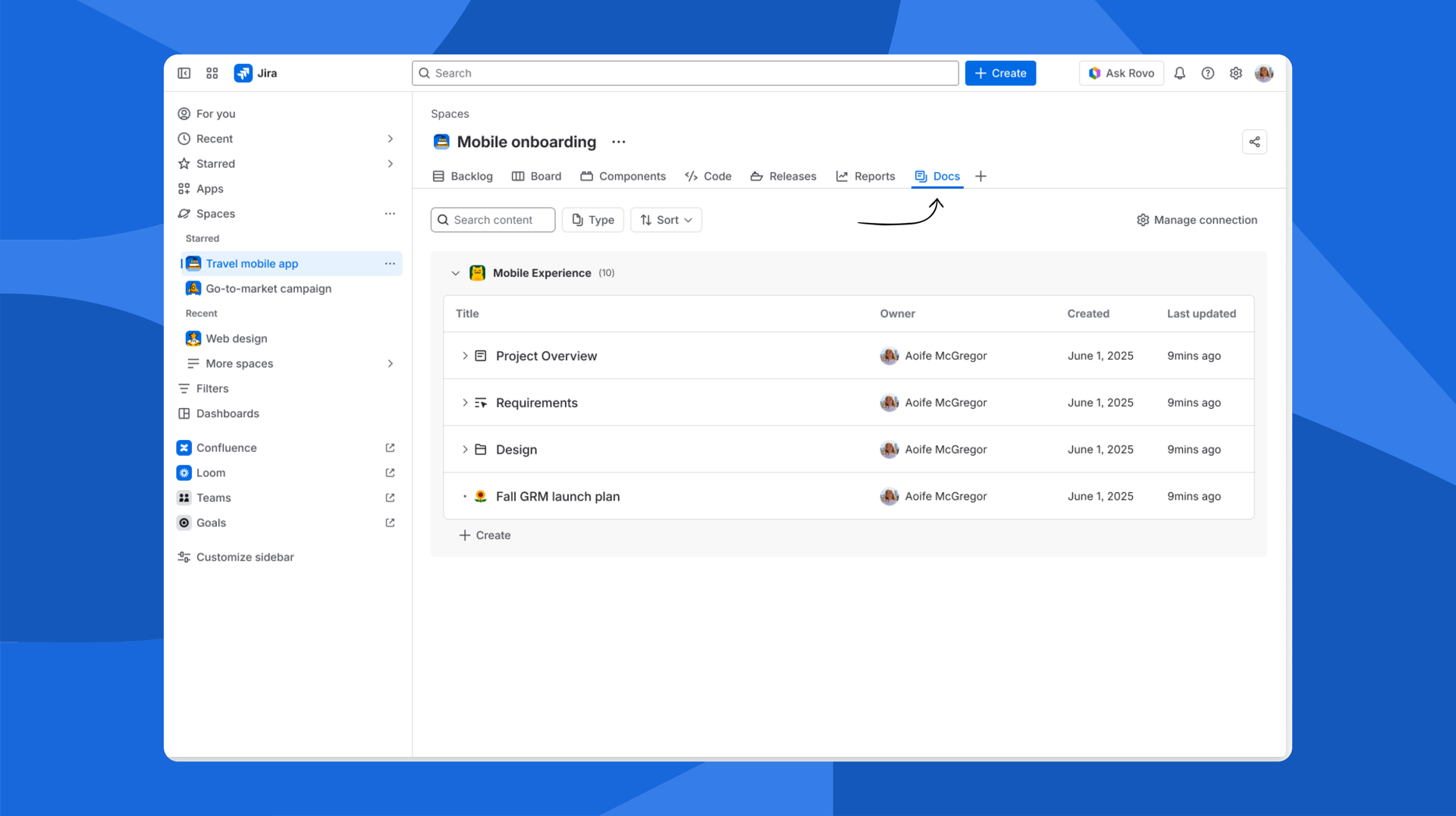
Your Jira work likely has a ton of Confluence content behind it: specs, decision docs, brainstorms, project plans, campaign mapping. Until now, accessing that from Jira meant clicking over to Confluence to find the right page. The refreshed Docs tab (formerly known as “Pages”) brings all of that content into Jira so you can find, preview, and even create without switching tools.
The old Pages tab only showed Confluence pages, which left out a lot of the work that your team does in Confluence – like brainstorming on whiteboards or collaborating on live docs. And with no way to search or filter, finding the right content in a large space meant a lot of scrolling.
Now everything lives in one place, and it’s actually easy to find.
How it works
All your Confluence content, in one view
Pages, live docs, whiteboards, and folders all show up in the Docs tab. Connect an existing Confluence space or create a new one, and your content populates automatically.
Find the right doc fast
Search by keyword across the entire connected space. Filter by content type (page, whiteboards, folders) and sort results however you want. No more scrolling through a long list hoping you spot the right one.
Preview and edit without leaving Jira
Click a page or live doc to open a preview panel right in Jira. Whiteboards open in a full-page view. You can read, edit, and publish all from the same place.
Create new content from Jira
Need a new spec or brainstorm board? Hit the create button in the Docs tab and start drafting a page, live doc, or whiteboard. Save it as a draft, come back later, publish when it’s ready.
Your existing connected spaces and pages carry over – the Docs tab just does more now. Try it out: open any space in Jira and click the “Docs” tab (formerly “Pages).
