
- DATE:
- AUTHOR:
- Jira product team
All the context right where you work
Meet the new global preview panel
Work doesn’t live in just one place. You’re jumping between Jira and Confluence, goals, teams, and projects – often in a sea of tabs. The global preview panel brings all that related context into a single, unified side panel across Jira and Confluence, so you can preview, reference, and act on linked work without losing your place.
How it works
Preview linked work in a unified side panel
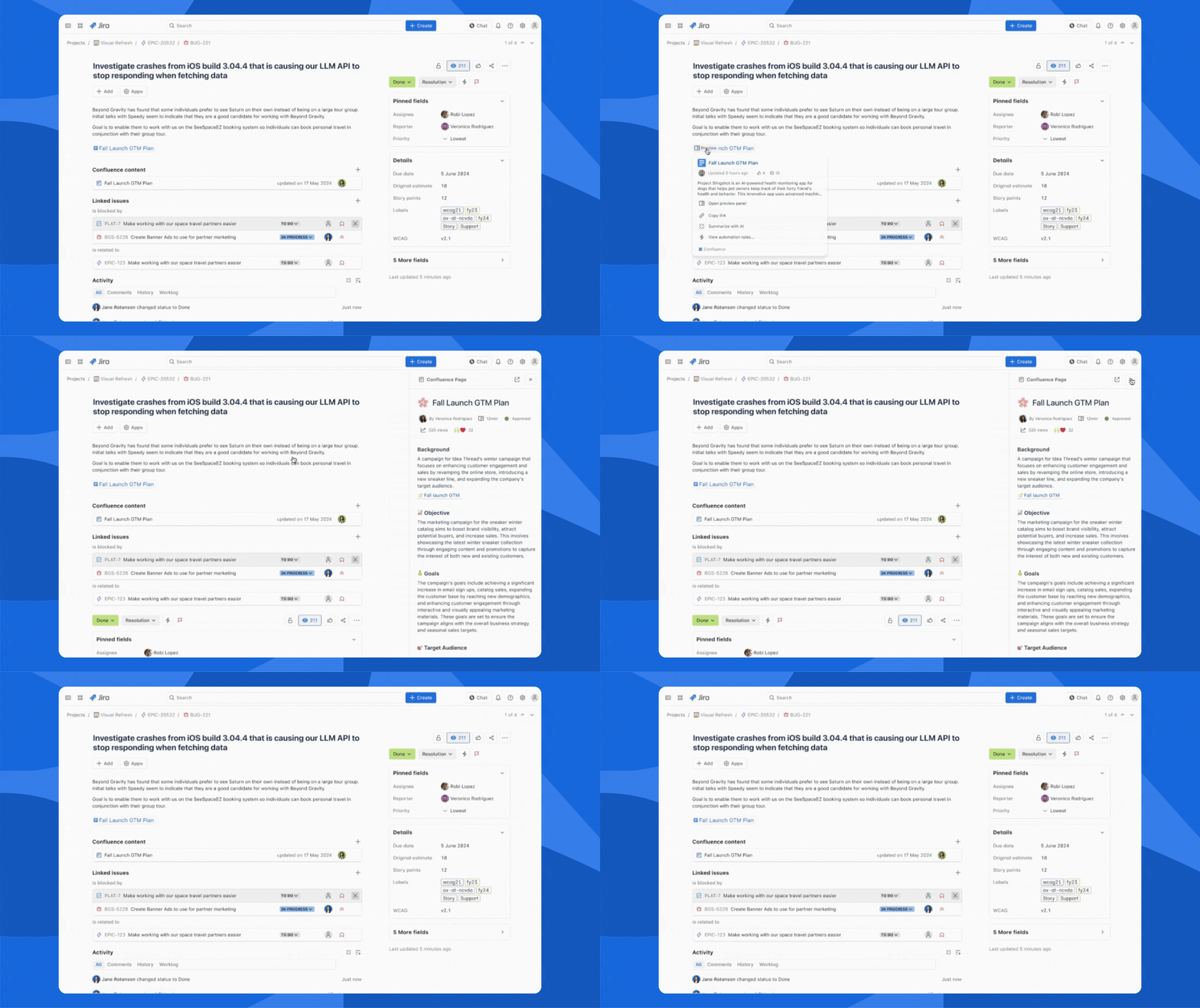
Click a Smart Link or related object – like a Jira work item, Confluence page, goal, team, or project – and it opens in a resizable side panel right next to what you’re working on. Whether you’re in list, board, calendar, timeline, or a full-page view, you can quickly glance at the details you need without opening a new tab.
Take action without breaking focus
The preview isn’t just read-only. From the global preview panel, you can comment, edit, update status, or adjust goals and project details directly. That means fewer clicks, fewer tabs, and a lot less context switching as you move work forward.
Get started
The global preview panel has rolled out automatically to Jira and Confluence Cloud – no setup required.
In Jira or Confluence, click on a Smart Link or related object (like a Jira work item, Confluence page, goal, team, or project).
The linked content will open in the side panel, where you can resize it, scroll, and take action without leaving your current view.
